Workpath supports single sign-on (SSO) logins through SAML 2.0. A SAML 2.0 identity provider (IDP) can take many forms, one of which is an Auth0 Application with the SAML add-on. This configuration allows your users to authenticate using any backend authentication connection, such as an LDAP directory, a database, or even other SAML IDPs or Social Providers supported by Auth0.
Create the application in Auth0
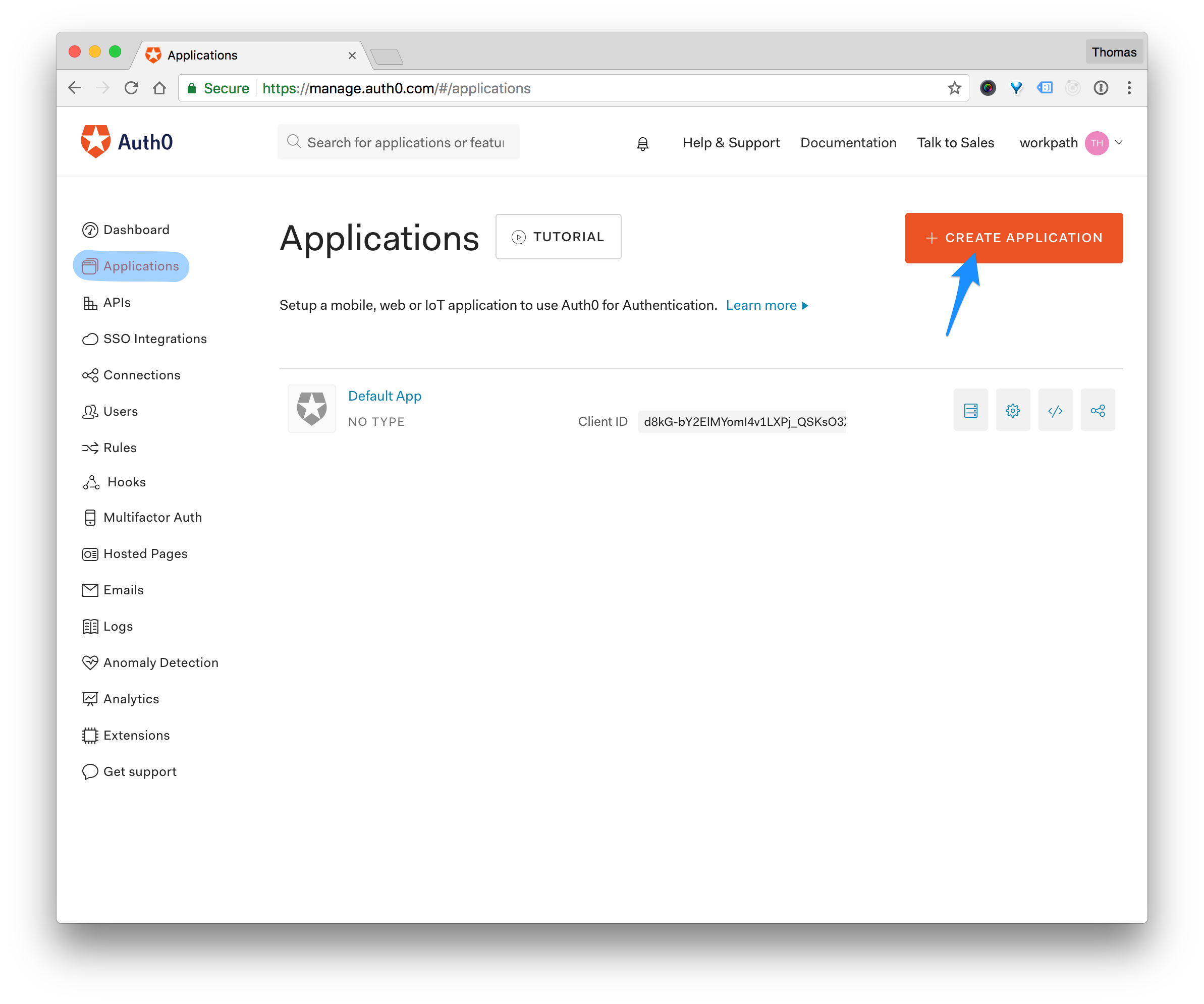
- Go to Dashboard > Applications.
- Click the + CREATE APPLICATION button on the right.
- In the Name field, enter "Workpath", and select "Regular Web Application" as application type.
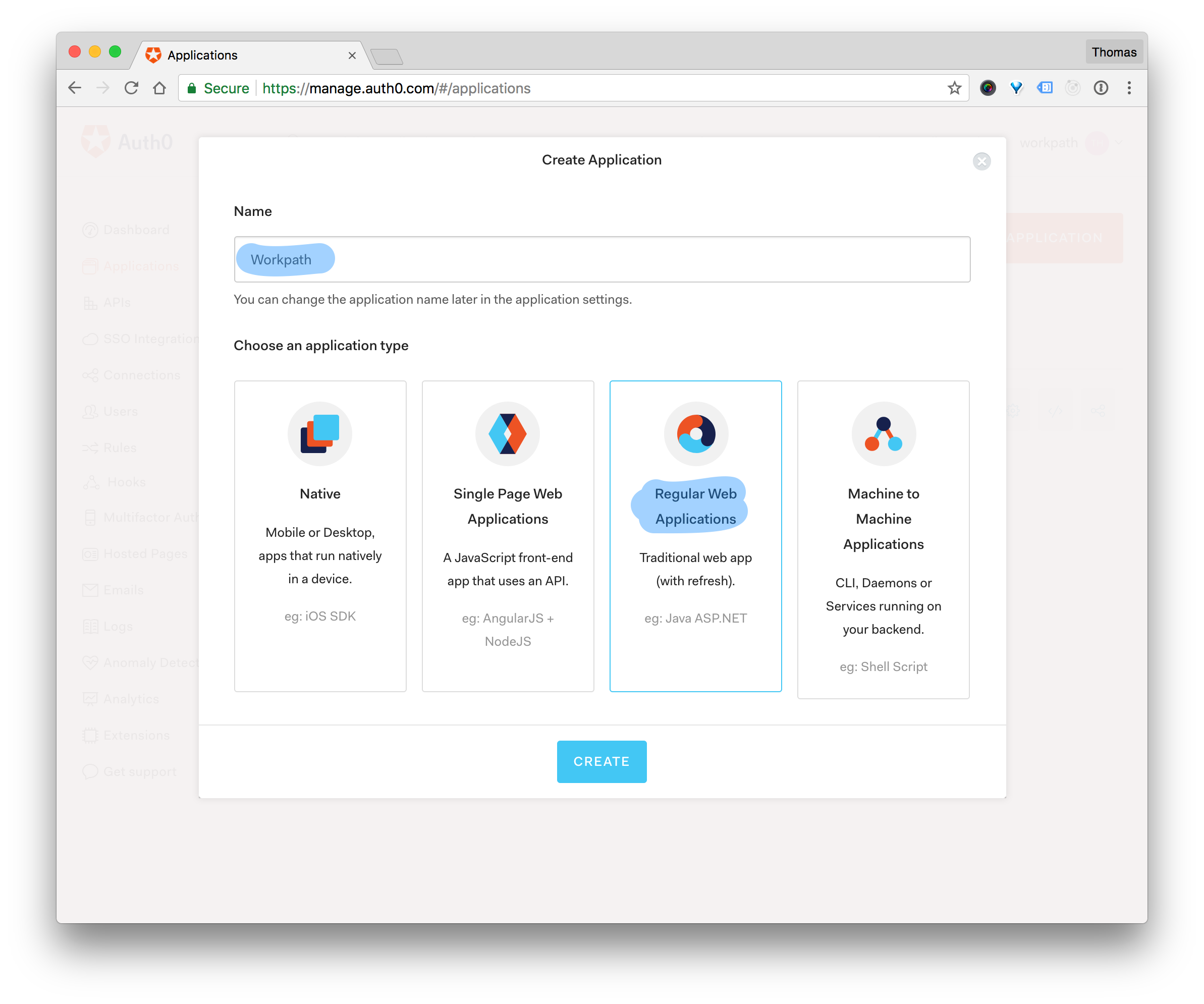
- Click SAVE.
- Click on the Settings tab.
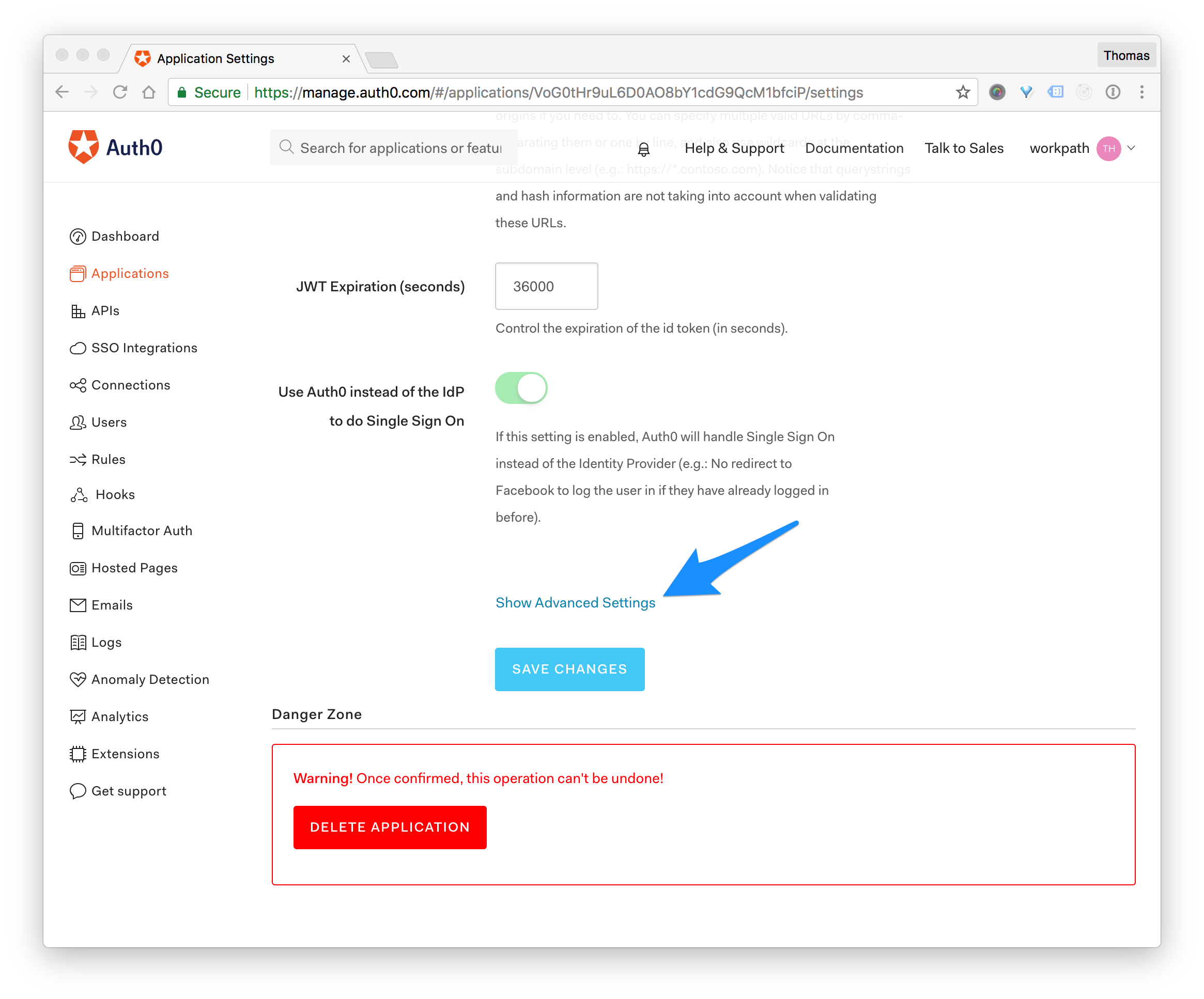
- Scroll down and click on the Advanced Settings link.
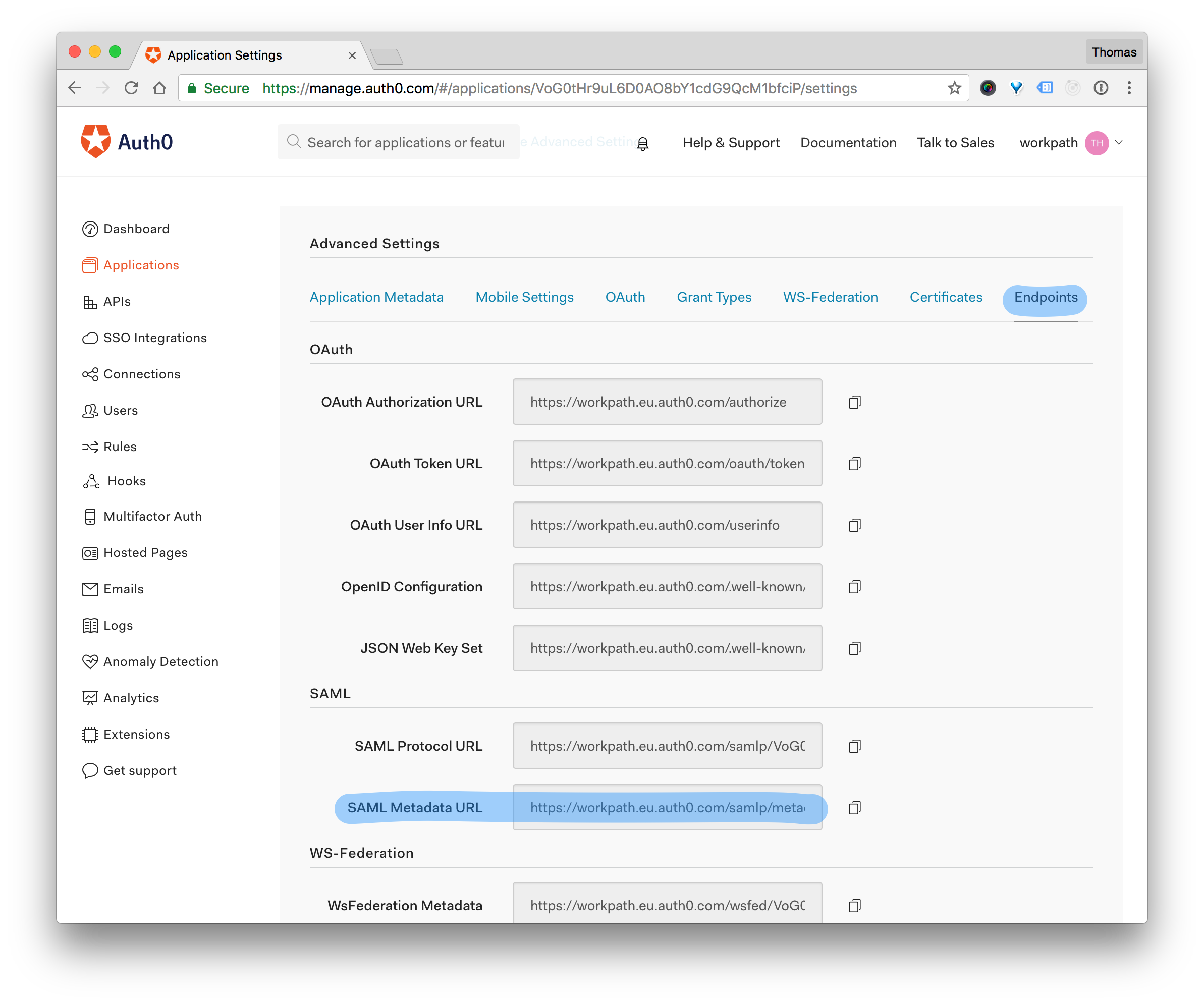
- Click on the Endpoints tab.
- Write down the SAML Metadata URL.
Configuration of Workpath
- Please provide your Workpath Account Manager with the SAML Metadata URL you obtained when creating the application.
- Your Workpath Account Manager will then configure the account on Workpath's side accordingly and provide you with an . Proceed to configure the SAML add-on in Auth0.
Configure the SAML add-on in Auth0
- Open the application settings from Dashboard > Applications.
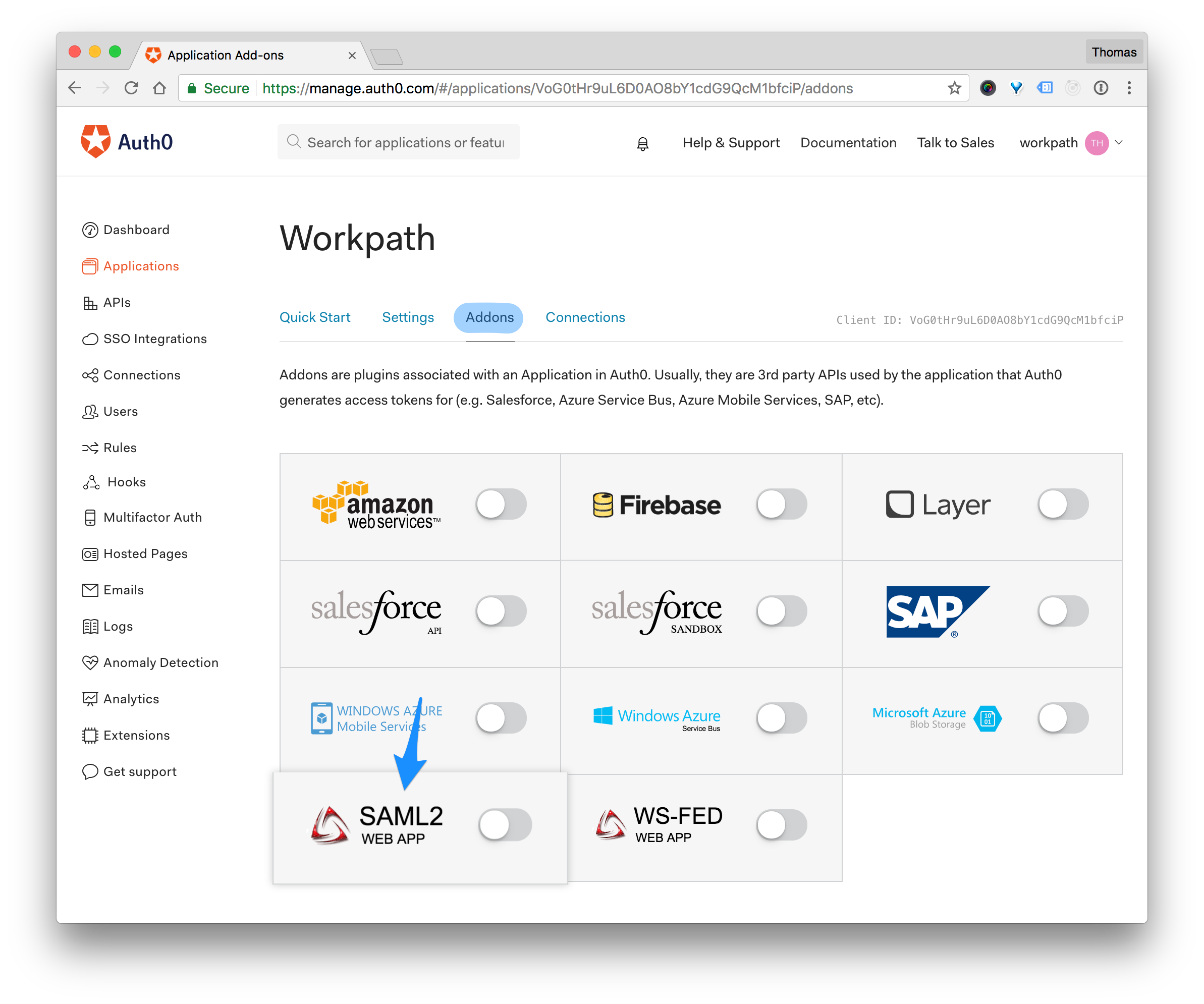
- Click on the Addons tab and select SAML2 Web App.
- Enter the
-
Click on Save.
Testing Single Sign-On
Once the configuration is completed in Auth0 and Workpath, it is time to test the single sign-on.
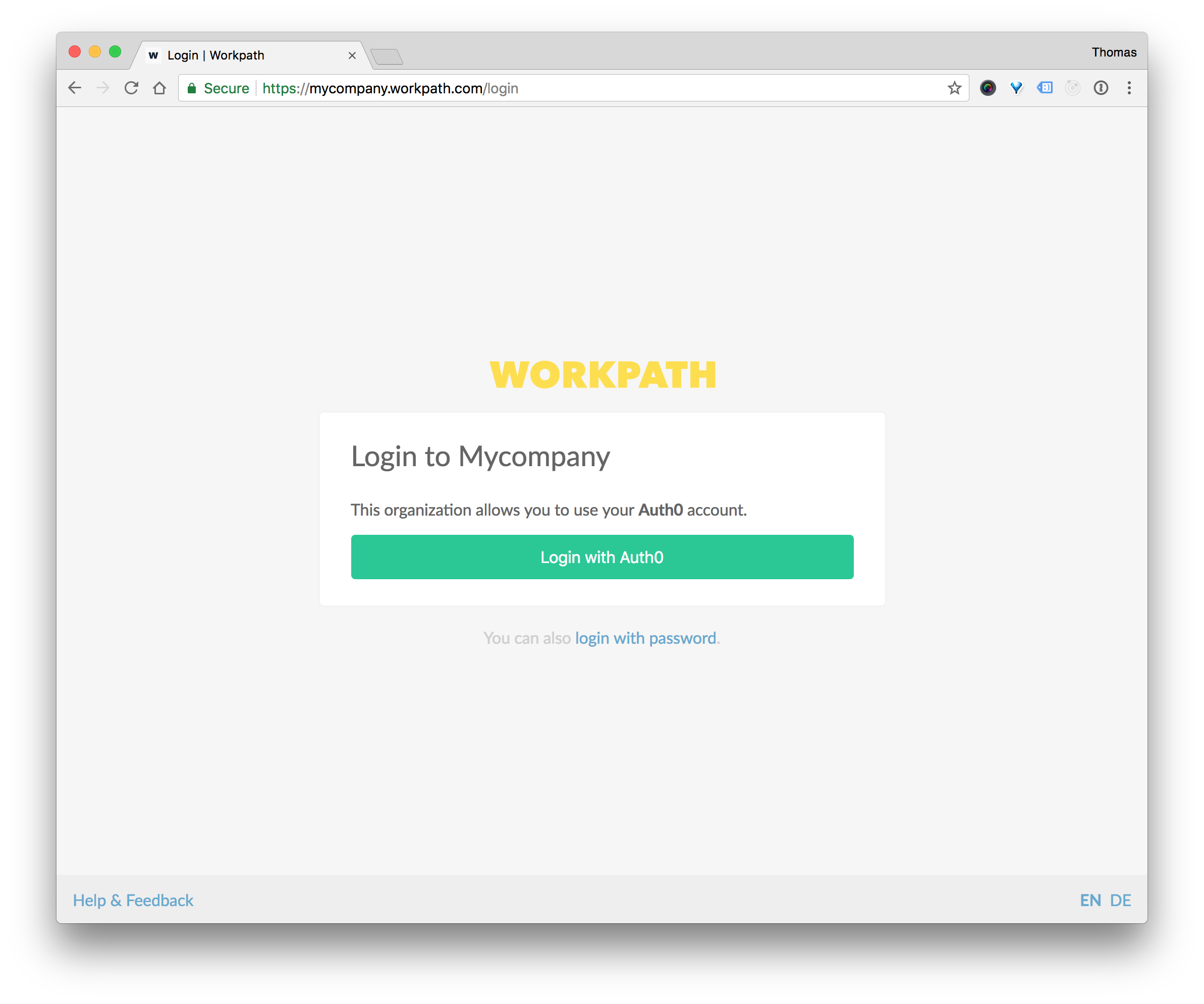
- Open the login page of your Workpath account (https://{account-subdomain}.workpath.com) and click on the Login Button.
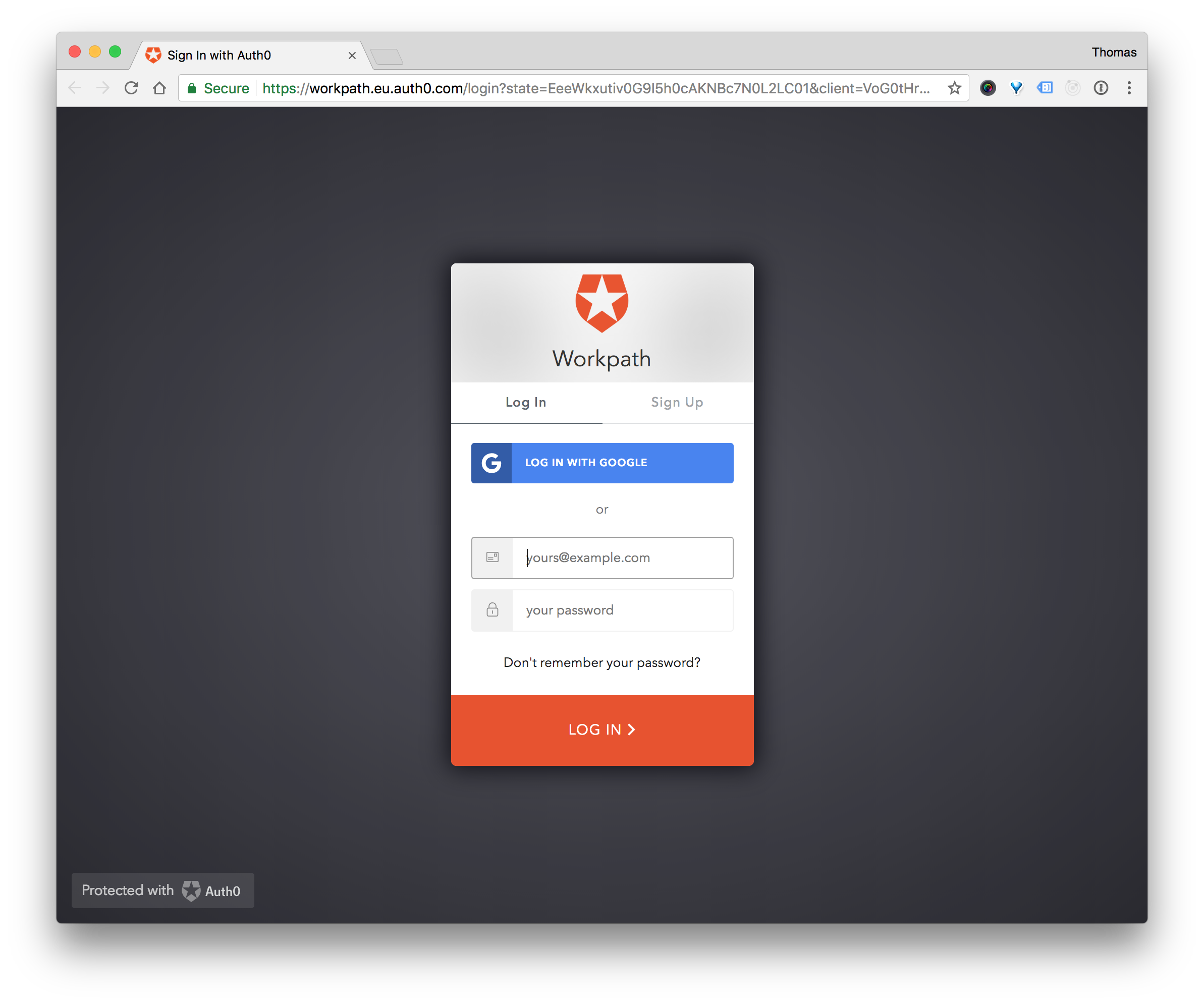
- Enter your Auth0 credentials.
- Hurray! You are now logged in to Workpath with your Auth0 account.