Workpath supports single sign-on (SSO) logins through SAML 2.0. A SAML 2.0 identity provider (IDP) can take many forms, one of which is the Google Workspace Admin.
See also: Set up your own custom SAML application - Google Workspace Admin Help
Configuring Single Sign-On
1. Head to “Apps → Web and mobile apps”, and select “Add custom SAML app”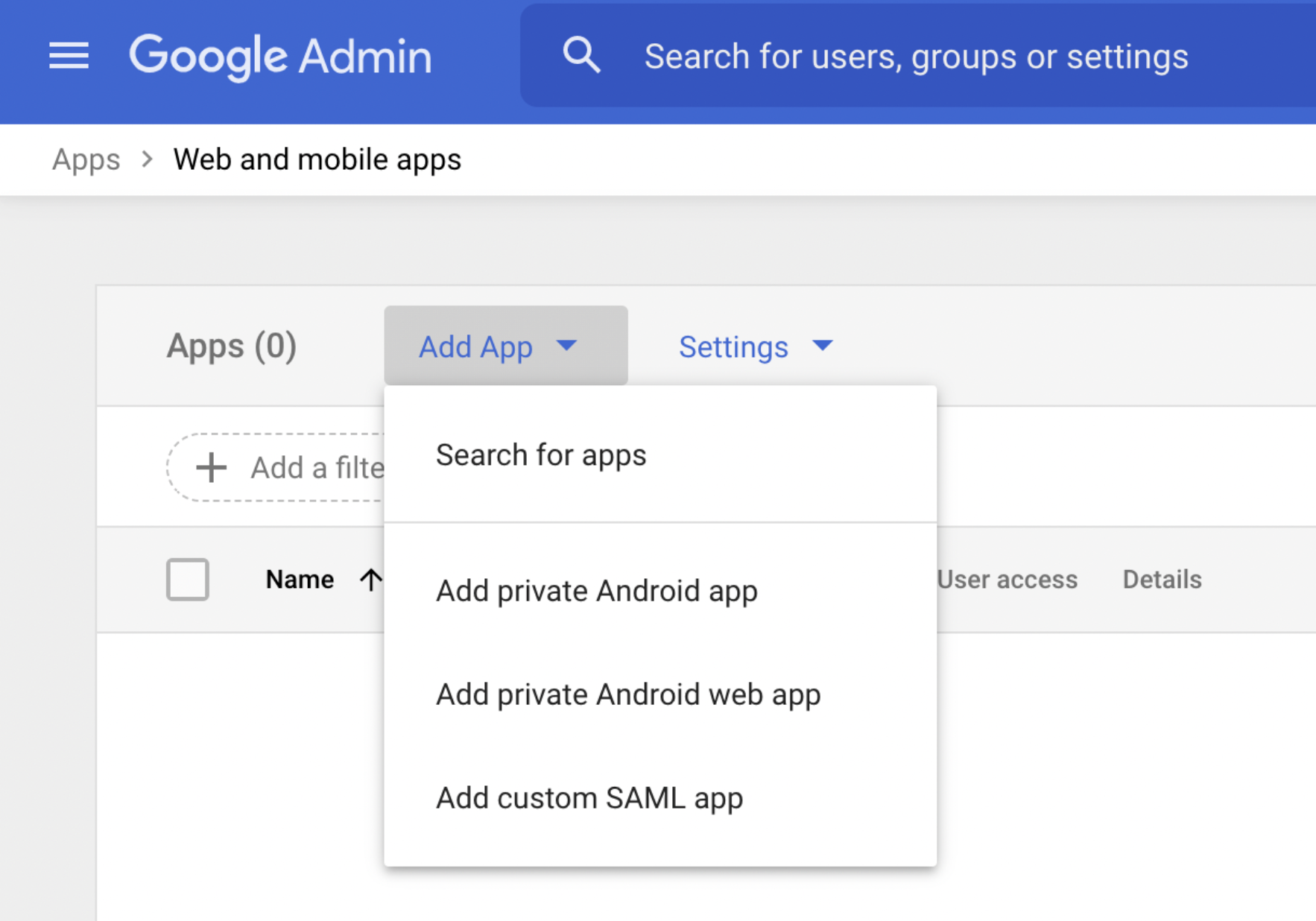
2. Choose the name “Workpath”
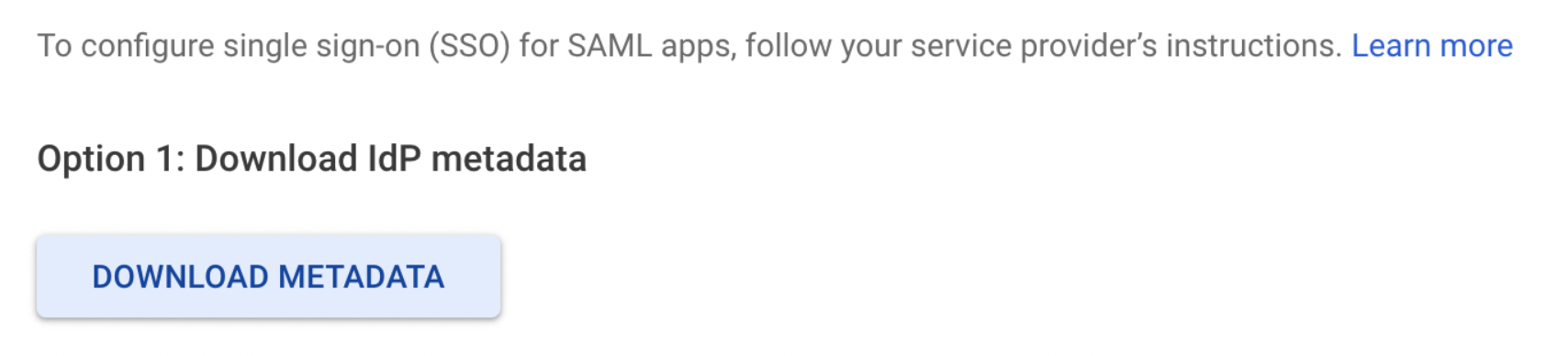
3. On the next page, choose “Download metadata”, and share this file with Workpath support. It contains configuration that is required to set up SAML single sign-on (SSO) on our end
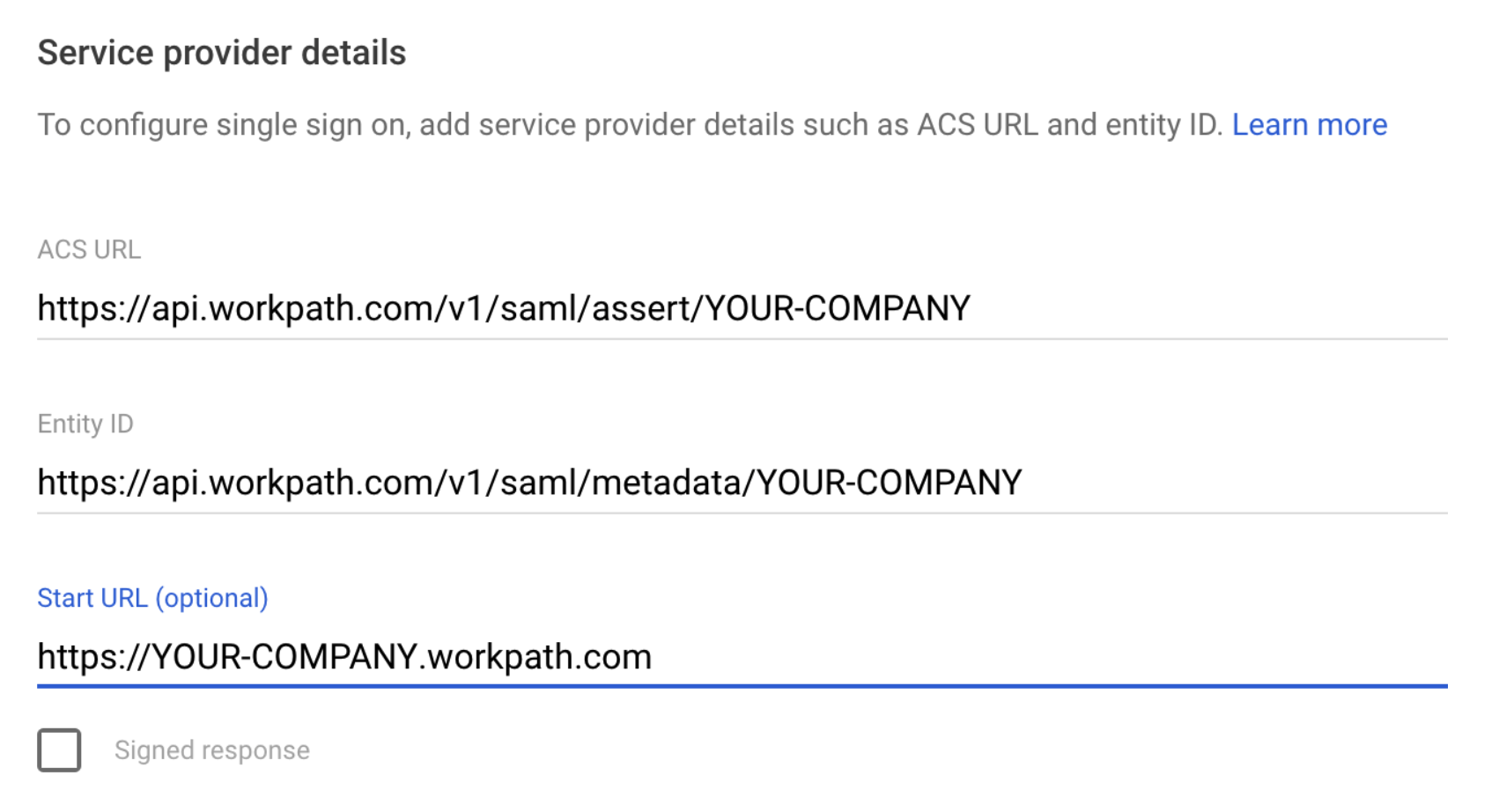
4. Enter the following data. Replace “YOUR-COMPANY” with the subdomain name that you see when accessing Workpath: https://YOUR-COMPANY.workpath.com
-
- ACS URL: https://api.workpath.com/v1/saml/assert/YOUR-COMPANY
- Entity ID: https://api.workpath.com/v1/saml/metadata/YOUR-COMPANY
- Start URL: https://YOUR-COMPANY.workpath.com
- Name ID format: EMAIL
- Name ID: Basic information -> Primary email
5. Configure the following attribute mapping. “First_name”, “last_name” and “email” are mandatory.
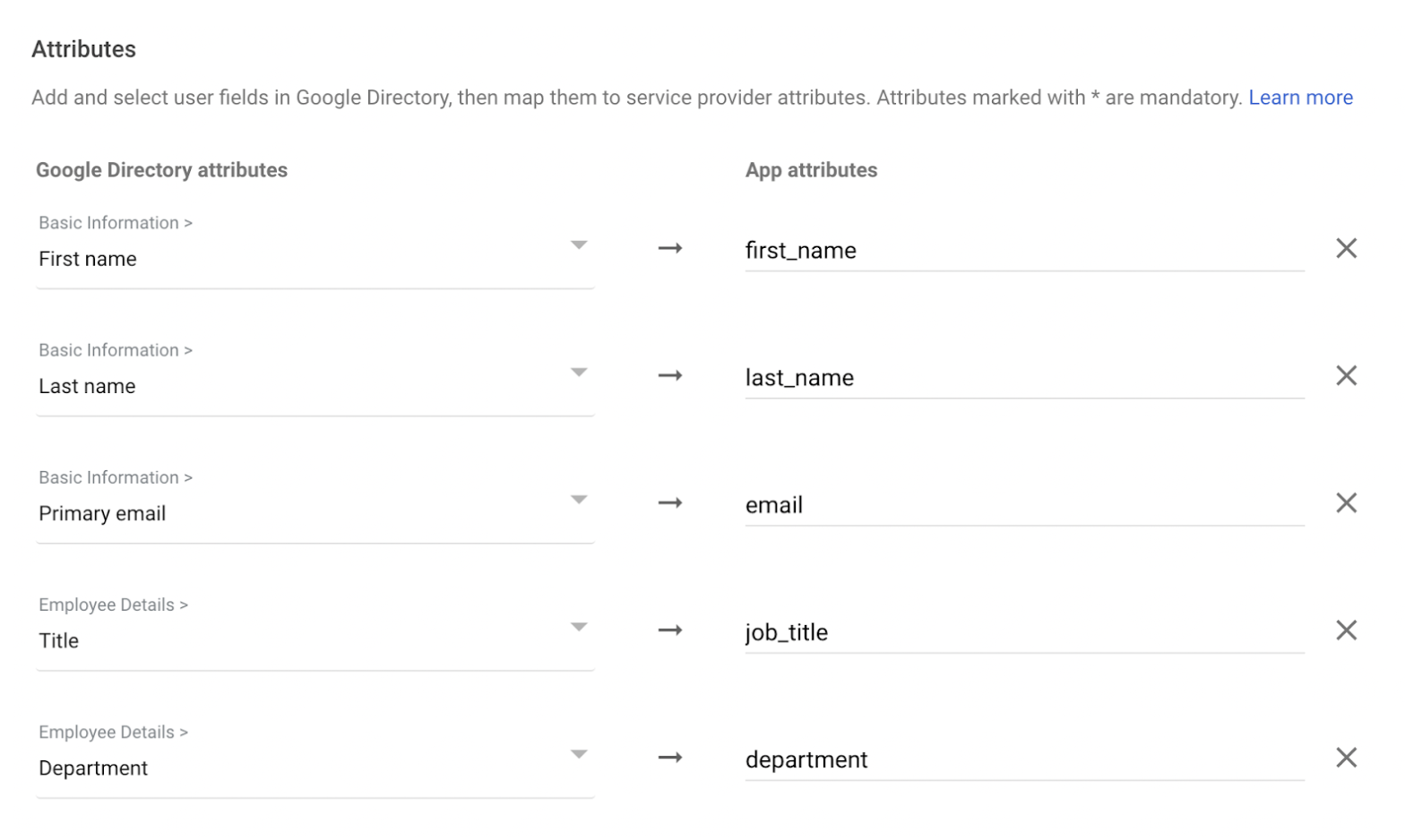
6. Done! When you head back to “Apps → Web and mobile apps”, you should now see Workpath listed there.
Making Workpath Single Sign-On Available to your Users
You have to explicitly enable access to Workpath to your users. You enable it for all users in your organization, or only for specific organizational units or groups.
1. Head back to “Apps → Web and mobile apps” and select the Workpath app
2. Click on “User access”: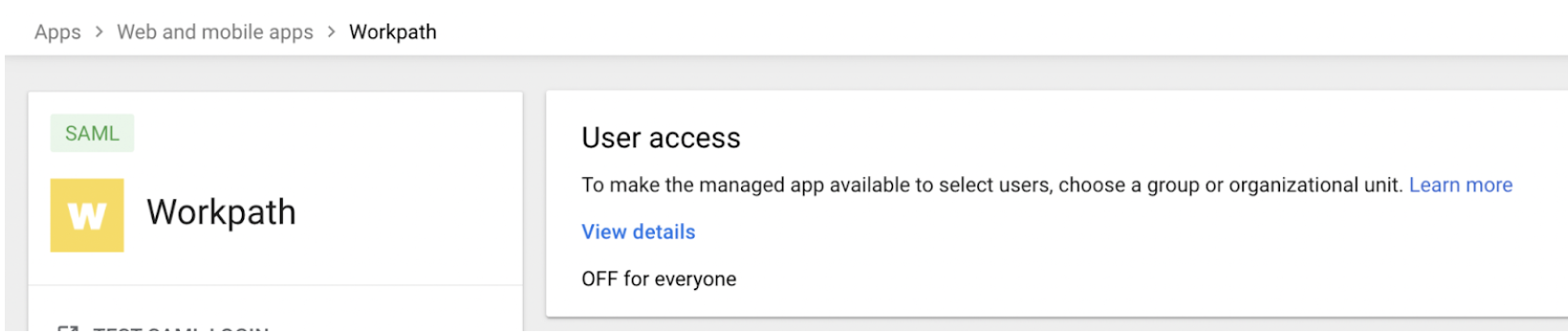
3. Select the appropriate groups or organizational units, and grant access to Workpath.
Testing Single Sign-On
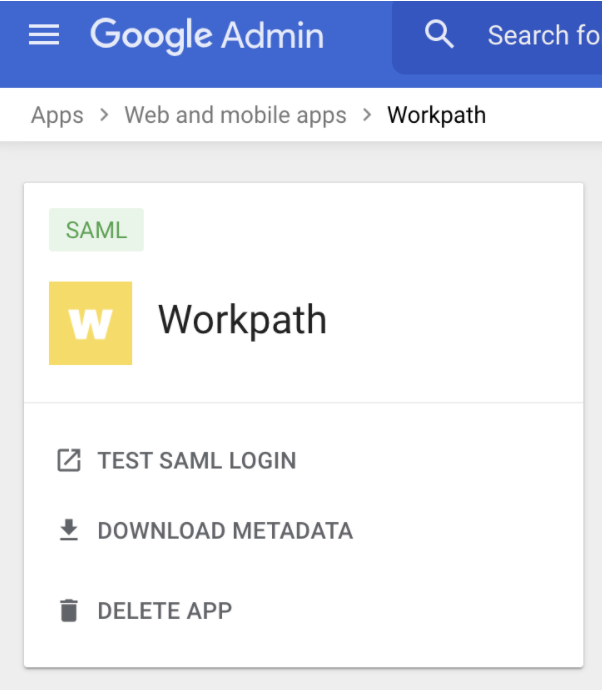
Once you have completed the steps above, and received confirmation from Workpath that our system has been configured with your metadata file, you can test single sign-on directly from the “Apps → Web and mobile apps → Workpath” page. Simply click on “Test SAML login”:
⚠️ Note that you may have to wait up until 24 hours before the permission to use Workpath has been applied to all users.