💡In Workpath Coaches might be called OKR Champions, Masters or Trainers for your organization. The procedure to assign them to teams stays the same.
Coaches are important points of contact for topics around the OKR process. As such, they facilitate the planning, alignment and weekly communication processes (check-ins) around goals and priorities.
To effectively support teams, Coaches can be assigned to them by Program Leads. One team can be supported by multiple Coaches, and each Coach can support multiple teams.
Assigning a Coach to a team
💡Granting roles and assigning Coaches to teams can only be done by Program Leads.
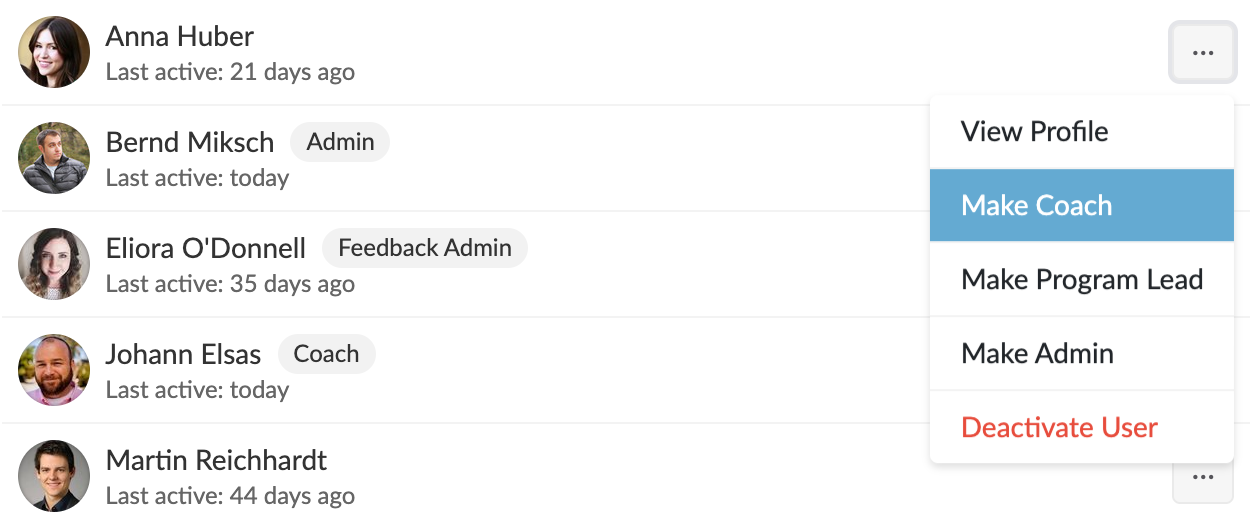
Before assigning a Coach to a team, please make sure that the user has been granted the Coach role first. To do so, go to Settings > Users. In the  context menu next to the user select "Make Coach". A badge "Coach" will appear next to users that have the Coach role.
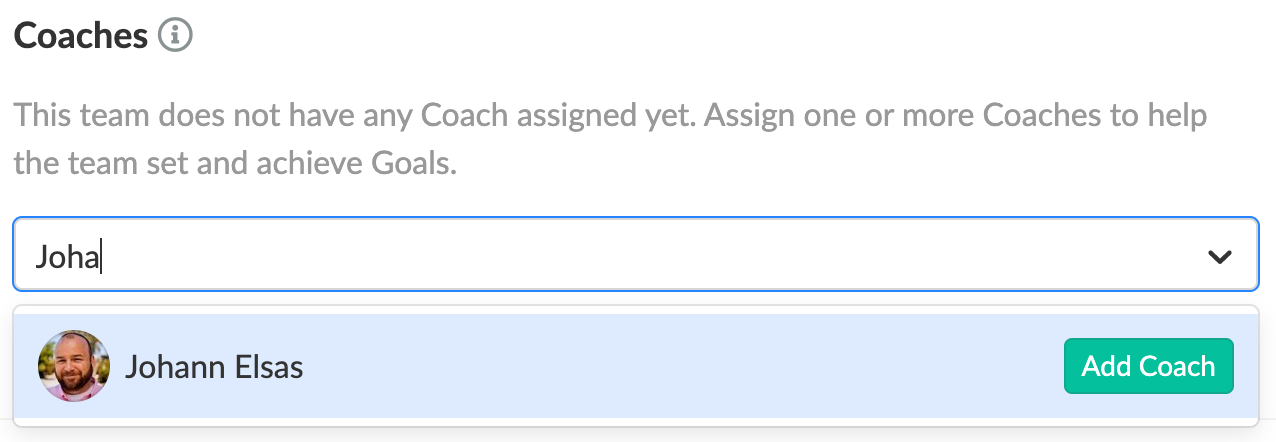
To assign Coaches to teams, navigate to Settings > Teams & Check-ins and select a team from the list. In the team settings page, click "Add Coach" and search for a user with the Coach role. Click the "Add Coach" button next to the users that you want to add to this team.
Coaches that are added to a team will see this team directly when clicking on the Teams drop-down in Workpath. They can support these teams, for example, by helping them to create Goals, do Check-ins, or manage team members.
Check out the roles in Workpath to learn more about their permissions.